Sending Customer Statements
Go to Reports and Billing, Statements.
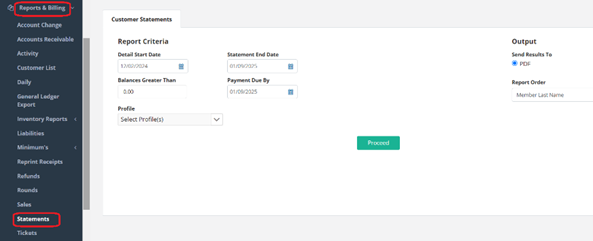
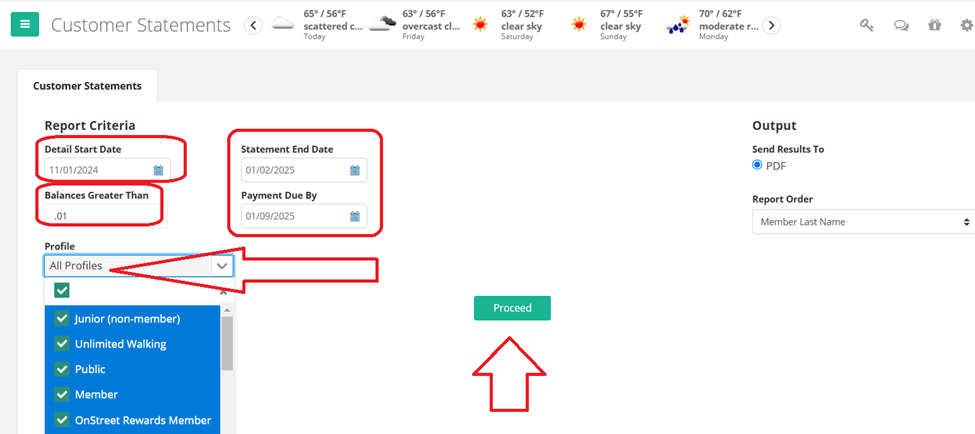
You can choose your detail start date – in the example below it has been changed to 11/1/2024. You can choose your Payment Due By date, as well as which profiles you want to bill.
Once your choices are made, press Proceed.
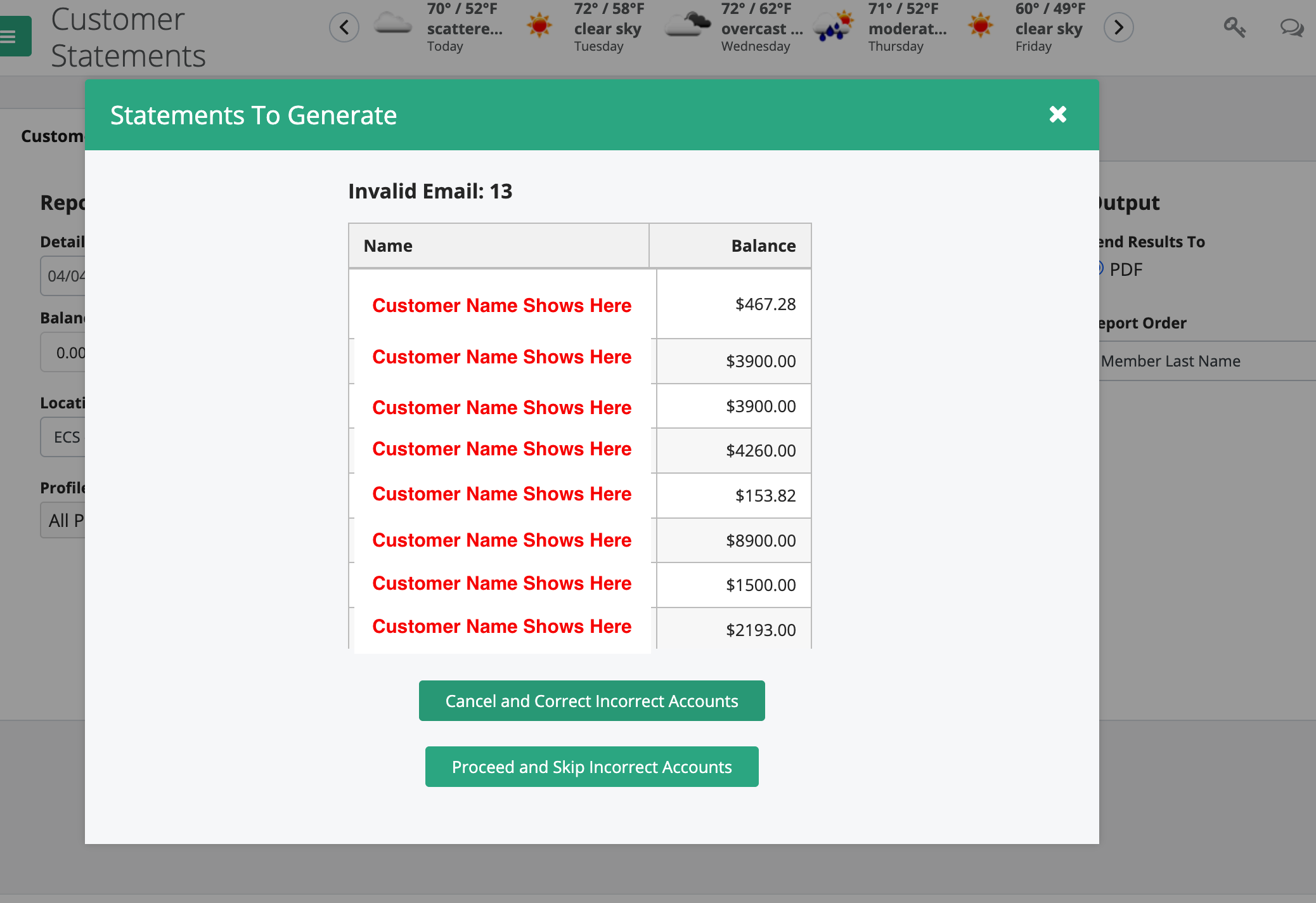
On the next screen, you will see those customers with an invalid email. This gives you the chance to cancel this process and go back to correct those emails or you can skip for now and go ahead and send statements out to all of those with correct emails and correct the invalid email accounts later. Be sure to write down or highlight, copy/paste the names that come up as incorrect so you can correct later.
After you click "Proceed and Skip Incorrect Accounts" (or if you have all correct emails) the following screen will appear, with the breakdown of Customers that need to have the statement printed and mailed, the ones that will get an emailed statement and the customers that you can even text the statement to.
You can review who is to receive a statement. The scroll bar will take you up and down each list. If you do not want a customer to receive a statement, simply, uncheck the box to the left of their name.
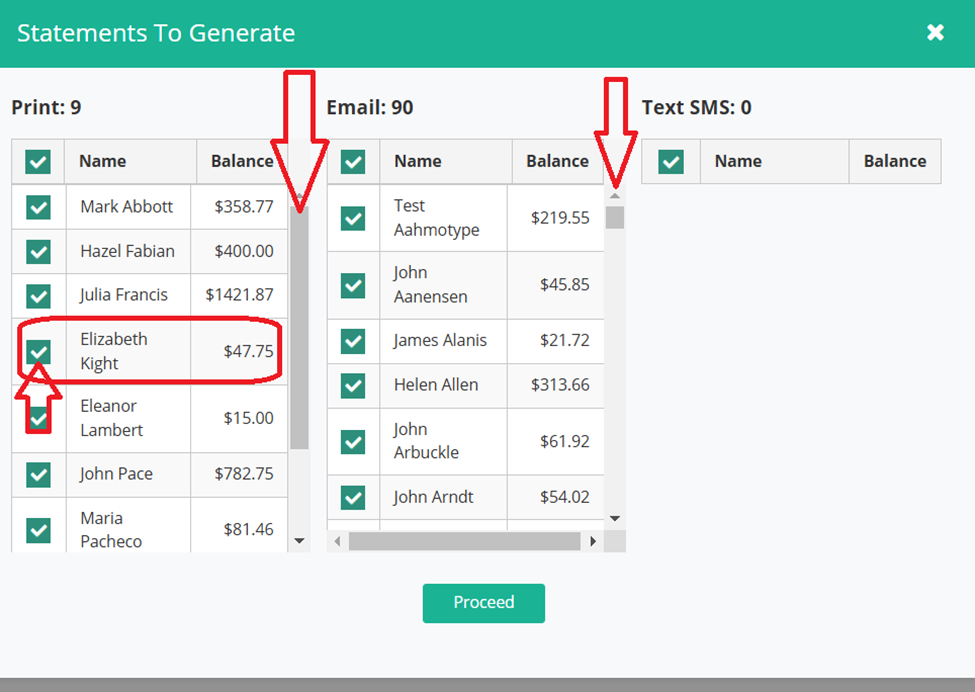
Once everything looks good, press Proceed.
***Please Note, the emails go out in waves to protect domain reputation. So this will "spin" for quite some time. If you wish to use the system while the statements are sending, please open ECS in another browser and log in again, but DO NOT close the tab/browser that is sending out the statements.
You can also generate a statement for a single customer as well.
To generate a statement for the customer, go to the Customer Tab and pull them up. Go to the Financial Tab and you will see Generate Statement.
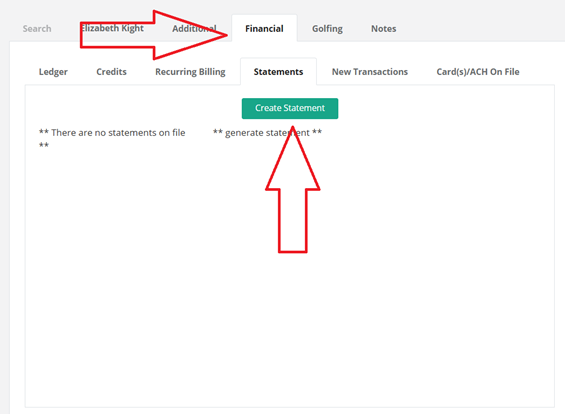
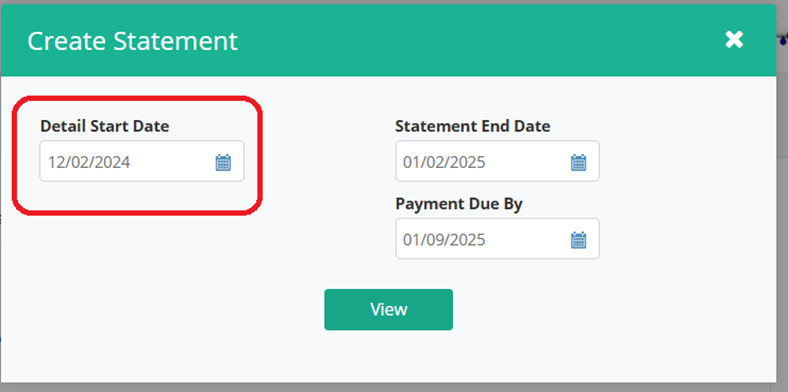
Once you click on Generate Statement, you have the option of choosing the start date for charges, and the payment due by date.
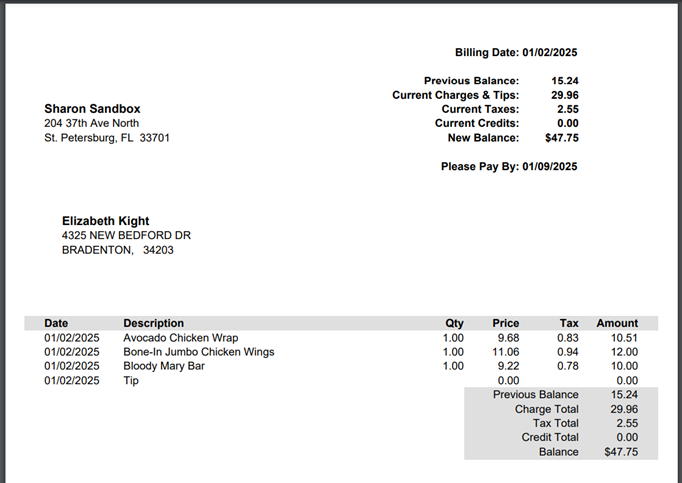
Press View and you can see the statement, print it and mail it to the customer.
Was this article helpful?
That’s Great!
Thank you for your feedback
Sorry! We couldn't be helpful
Thank you for your feedback
Feedback sent
We appreciate your effort and will try to fix the article