If you are having trouble getting your database to save and have to type it in every time you login, follow these steps:
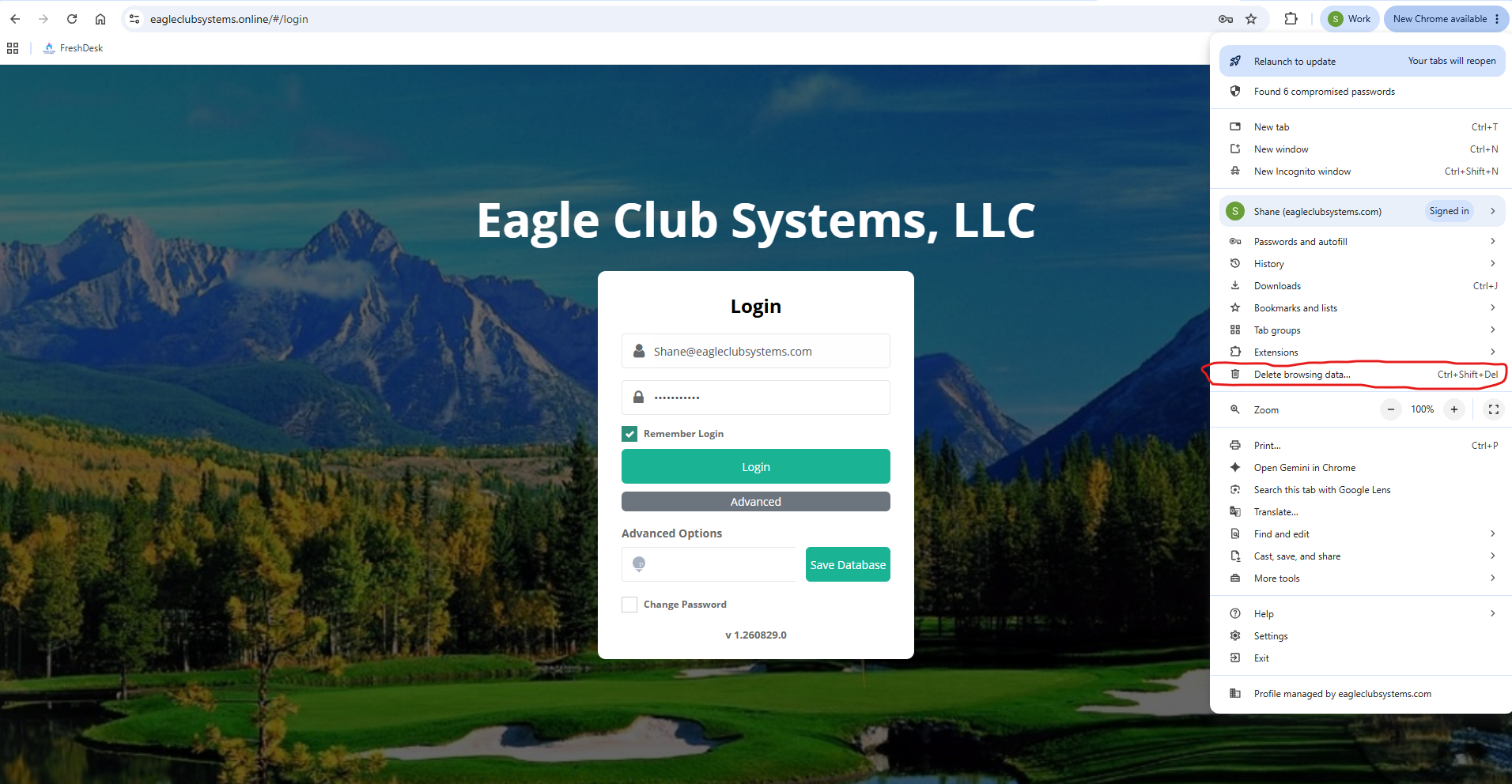
In Chrome, click the three dots up in the top right corner of the screen.
Click the option "Delete Browsing Data"
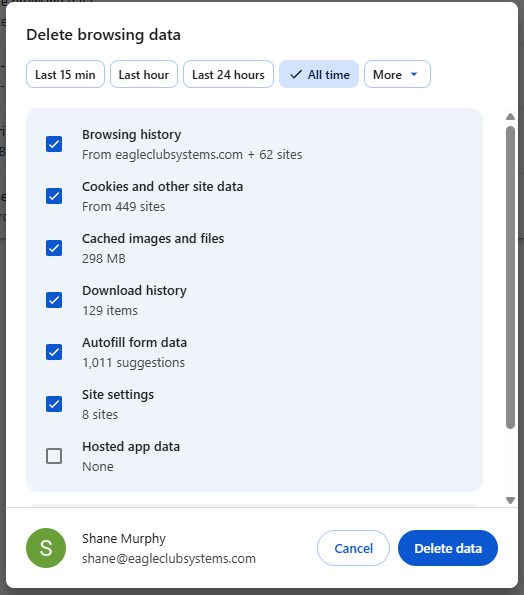
A new window should open, make sure "All time" is selected for the date range
Select all of the boxes to clear your data, then click "Delete Data"
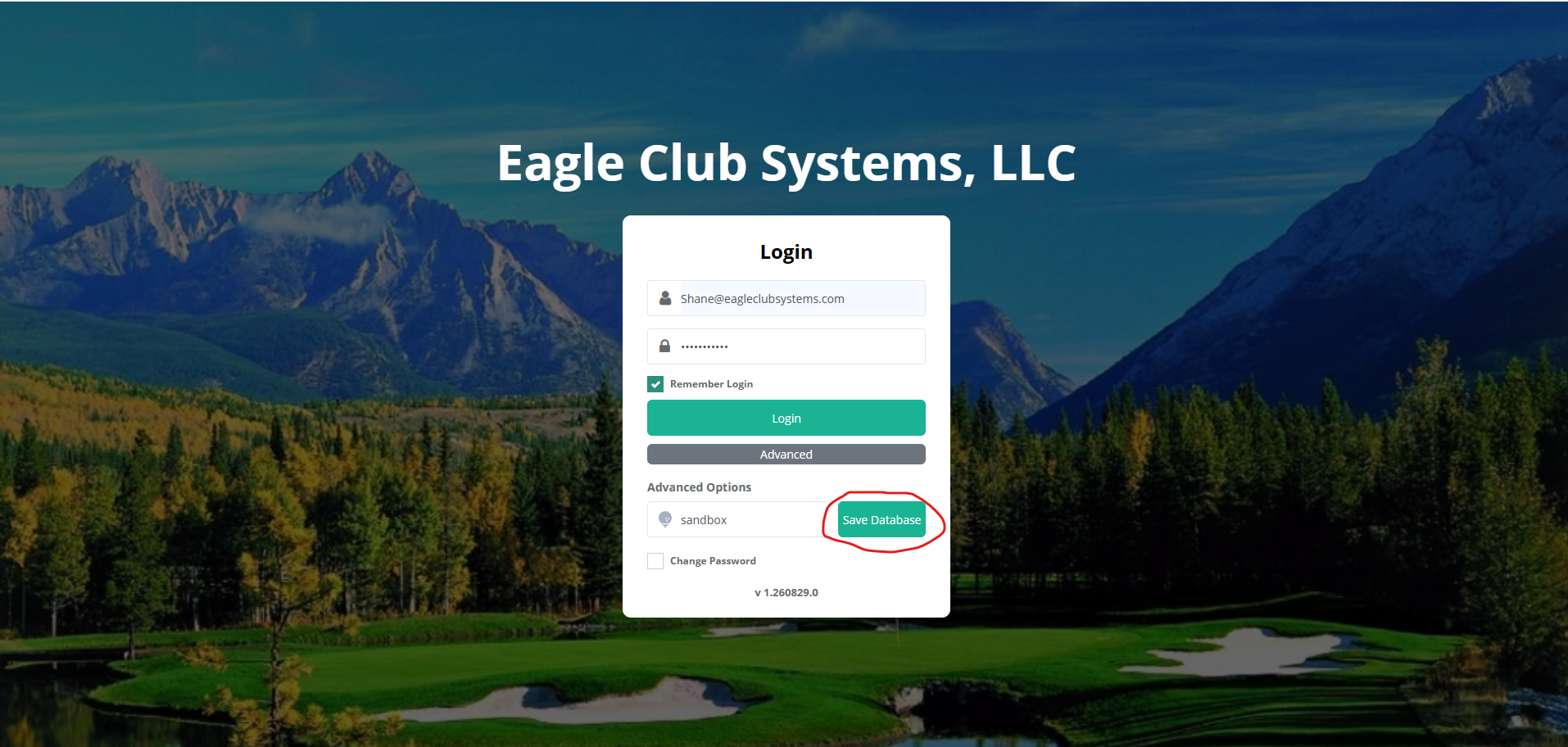
Now, go back to the Eagle Club Systems Login Page and type in your login information as well as the database name for your facility.
Click "Save Database" and then login.
Doing this will also clear your workstation preferences, so be sure to check in "Utilities" and "Workstation Preferences" to select the correct Locale, Cash Register, CC Device, Receipt Printer, and Receipt options.
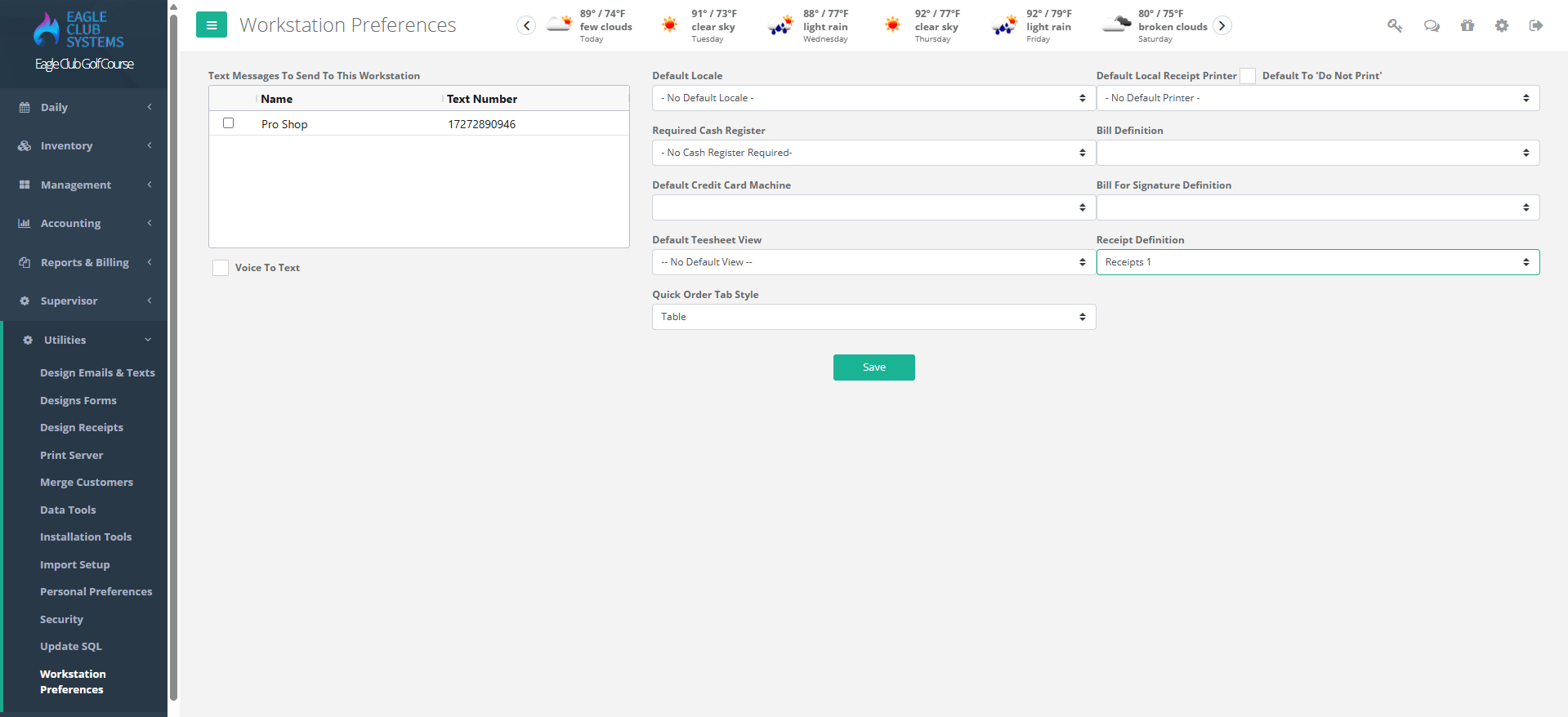
Once everything looks correct, be sure to click "Save" at the bottom to save your preferences
Was this article helpful?
That’s Great!
Thank you for your feedback
Sorry! We couldn't be helpful
Thank you for your feedback
Feedback sent
We appreciate your effort and will try to fix the article